3-1-软件包管理
一、Linux下软件包管理
㈠ 软件包类型
1 、 二进制包(已编译好)
什么是二进制包?有什么特点?
- 二进制包,指的是已经编译好了的软件包,只需要==直接安装==就可以使用。
- 二进制包,==不需要编译==,直接下载安装即可
- 二进制包,需要根据自己的计算机CPU以及操作系统去==选择合适==的
- 二进制包,命名方式一般为:python3-libs-3.6.8-18.el7.x86_64.rpm
- 二进制包,还有一种:mysql-5.5.32-linux2.6-x86_64.tar.gz(tar -zxvf 后可以直接解压使用,无须安装)

x86_64就是64位系统的软件包
noarch表示可以安装在任意的系统架构上。
2、源码包(程序源文件)
什么是源码包?有什么特点?
- 源码包,指的是程序员写的原始的==程序代码文件==,==不能==够==直接==在计算机上==运行==。
- 源码包,需要进行==编译==,变成==二进制的软件包后==,才可安装使用
- 源码包,一般可以在任何的计算机上安装使用
- 源码包,命名方式一般为:
软件包名.tar.gz软件包名.tar.bz2软件包名.tar.xz软件包名.zip
3、 二进制源码包(了解)
- 什么是二进制源码包?有什么特点?
- 二进制源码包,是一个==半成品==,安装后不能直接使用
- 二进制源码包,需要使用
rpmbuild工具重建成真正的rpm包或者重建成源码包才可安装使用 - 二进制源码包,命名方式一般为:
- mysql-community-5.7.25-1.el6.==src.==rpm
- mysql-community-5.7.25-1.el7.==src==.rpm
㈡ 常见的二进制软件包格式
| 系统平台 | 包类型 | 工具 | 在线安装 |
|---|---|---|---|
| RedHat/Centos/Fedora/SUSE | rpm | rpm,rpmbuild | yum |
| Ubuntu/Debian | deb | dpkg | apt |
㈢ 总结二进制包和源码包区别
| 软件包类型 | 是否编译 | 安装难易程度 | 可定制性 |
|---|---|---|---|
| 二进制包 | 否 | 易(直接安装) | 差 |
| 源码包 | 是 | 难(配置—>编译—>安装) | 好 |
二、Linux系统中软件包安装方式
㈠ 二进制包(rpm包)
1、==rpm工具安装==
- 首先,需要下载好rpm包到本地
- 然后,直接使用rpm工具安装
2、yum工具安装
- 首先,需要配置软件仓库(里面存放很多rpm软件包)
- 然后,使用yum工具安装,自动下载rpm
㈡ 源码包(tar.gz)
1、根据需求配置
功能的定制,比如给nginx、mysql各类软件,安装时候就加上一些额外的功能,如https的支持。
2、编译
使用编译器编译成二进制的软件包,源代码 > 可安装的软件包。
3、安装
将软件包安装到指定位置
4、源码包安装优点
- 可以在==任意平台==上编译安装,编译出来的软件包非常适应所在机器。
- 可以在编译的时候,通过配置,==对某些功能进行定制==,开启或关闭相应的功能。
三、==二进制rpm包如何管理(重点)==
㈠ 如何获取rpm包
Linux只是内核,Linux发行版本:GNU/Linux
- RedHat/Centos光盘或官方网站 ftp://ftp.redhat.com
- 推荐网站
- www.rpmfind.net
- rpm.pbone.net
- 相应软件官方网站
㈡ 如何选择合适的rpm包
- 选择==适合当前系统==的版本号
- 找不到适合的,才去尝试别的系统版本号
- el6兼容el5;el5无法安装 el6
- 选择==适合当前计算机cpu==的架构
- x86_64包,只能安装在64位的系统上
- i386,i586,i686的软件包可以安装在32和64位系统上
- noarch表示这个软件包与硬件构架无关,可以通用
- 32位系统不能安装64位包
建议: 建议不要跨大版本号去安装软件包,尽量使用当前系统版本自带软件包安装
㈢ 如何管理rpm包
1、==rpm工具管理==
① rpm工具安装rpm包
# rpm -ivh 软件包
# rpm -ivh  python3-libs-3.6.8-18.el7.x86_64.rpm

注意:软件包的名字必须写全,xxx.rpm
② rpm工具卸载rpm包
# rpm -e 软件包名字
# rpm -e python3-libs
注意:卸载软件只需要跟软件包名字即可
③ rpm包的升级rpm包
# rpm -Uvh 软件包
或者
# rpm -Fvh 软件包

选项说明:
-v:输出详细信息
-h:打印散列标记,一般和-v一起使用
-U:升级软件包,如果该软件包没安装,会自动帮你安装
-F:升级软件包,如果该软件包没安装,不会自动帮你安装
④查看rpm包相关信息
查看已经安装的软件的文件列表
rpm -ql    软件包名

查看未安装的rpm包里的文件列表
rpm -qlp  软件包(xxx.rpm)

查看已经安装的所有rpm包
rpm -qa 软件包名

查看已经安装软件的文档列表
rpm -qd 软件包名

查看已经安装软件的配置文件
rpm -qc 软件包名

查看已经安装软件的详细信息
rpm -qi 软件包名

查看指定文件来自哪个rpm包
rpm -qf 文件名
⑤ rpm工具其他安装选项
--force        表示强制
rpm -ivh 软件包 --force        强制安装软件包
rpm -e 软件包名 --force      强制卸载软件包

--nodeps        忽略依赖关系
rpm -ivh 软件包 --nodeps    忽略依赖关系安装
rpm -e 软件包 --nodeps        忽略依赖关系卸载

其他了解:
rpm --import  key_file            导入公钥用于检查rpm文件的签名
rpm --checksig package.rpm        检查rpm包的签名
⑥ 工作里怎么用rpm(重点)
RPM包管理:以上操作都比较简单,但是在实际应用过程中,可能会遇到问题,很多rpm软件包在安装时都会提示软件依赖。那这个问题如何解决呢?
方法一:根据提示一个一个软件包安装,先解决依赖在回来安装软件
方法二:使用yum install 安装rpm软件包
# yum install 软件名称.rpm
以上安装方式的最大好处是,如果安装软件时,产生了依赖,不用担心,yum会自动帮助我们解决这些问题的!
2、yum工具管理
核心:需要有一个==软件仓库==,软件仓库指的是来存放软件包和软件包之间的依赖关系地方。
① yum工具安装rpm包
# yum -y install 软件包名
# yum -y groupinstall "包组名"

注意:
1.其中,-y选项表示取消交互
2.包组里面包含很多的软件包。
② yum工具卸载rpm包
# yum -y remove 软件包名
# yum -y groupremove "包组名"
③ yum工具升级rpm包
# yum update 软件包名
④ yum工具其他相关选项
# yum list                列出仓库里的软件包
# yum repolist            列出可用仓库
# yum clean all        清空yum缓存
# yum makecache         创建yum缓存
四、源码安装(重点)
㈠ 根据需求配置
在编译时候,你可以加上这些参数,指定一些额外的功能
--prefix=... Directories to put files in /usr/local 软件家目录
--bindir=... $prefix/bin     命令的目录
--etcdir=... $prefix/etc     配置文件的目录
--mandir=... $prefix/share/man man    文档路径
--locale=... $prefix/share/locale     语言编码
...
㈡ 编译
make (使用gcc编译器进行编译)
㈢ 安装
make install 类似 rpm -ivh
㈣ 源码安装示例
1、 安装需求
- 安装cmatrix(骇客帝国)软件包
- 确认软件可用
2、安装步骤
1.什么时候选择编译安装
- 对软件有额外的要求,如
- 性能
- 安装路径
- 额外功能开启
2.软件编译安装前的环境准备(如编译工具等)
有趣的小火车命令(yum)
当你安装一个工具,它没什么额外的要求,只需要简单安装使用,你可以不用编译,选择最方便的办法
安装epel源
yum -y install epel-release

安装小火车命令,sl
[root@yuchao-linux01 opt]# yum install -y sl

运行小火车一次
sl

看看下载sl软件的二进制安装包
yum install --downloadonly --downloaddir=/tmp/ sl

如果软件已经安装过了,你得使用reinstall
[root@yuchao-linux01 ~]# yum reinstall --downloadonly --downloaddir=/tmp/ sl

找到这个sl软件包
[root@yuchao-linux01 ~]# ls /tmp/sl-5.02-1.el7.x86_64.rpm
/tmp/sl-5.02-1.el7.x86_64.rpm
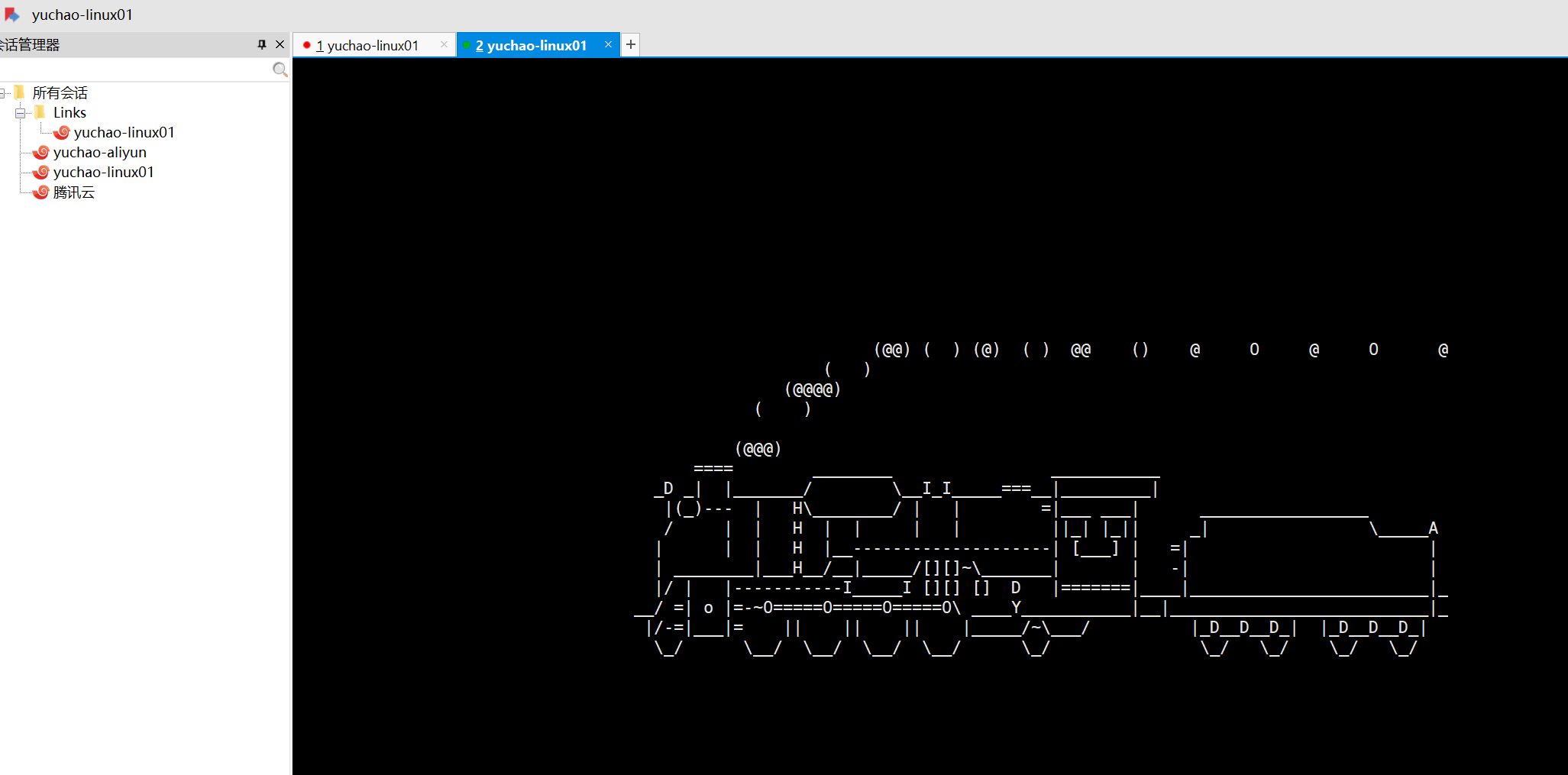
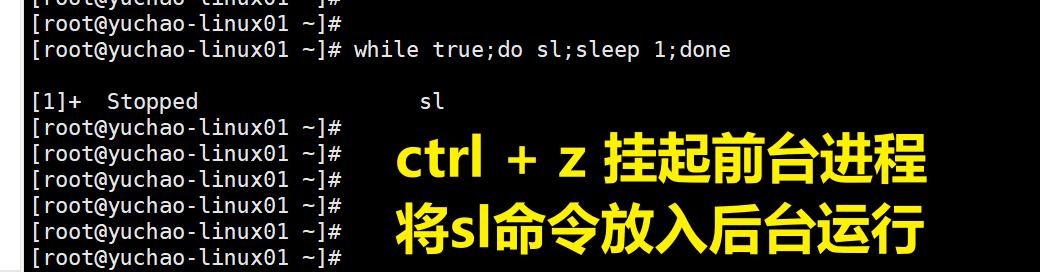
无限死循环,重复运行小火车,每隔一秒钟运行一次
while true;do sl;sleep 1;done
酷炫的骇客帝国(编译)
1.编译环境准备,下载源码
骇客帝国是一个linux屏保软件,无法直接通过yum直接安装,它不在yum仓库里,没有现成的rpm包给你用。
需要下载源代码包。
1.需要wget命令,在线下载
yum install -y  wget //安装wget

2.下载源代码
[root@yuchao-linux01 opt]# wget http://jaist.dl.sourceforge.net/project/cmatrix/cmatrix/1.2a/cmatrix-1.2a.tar.gz


3.查看源代码
[root@yuchao-linux01 opt]# ll
total 76
-rw--w--w- 1 root root 74376 Apr  1  2002 cmatrix-1.2a.tar.gz


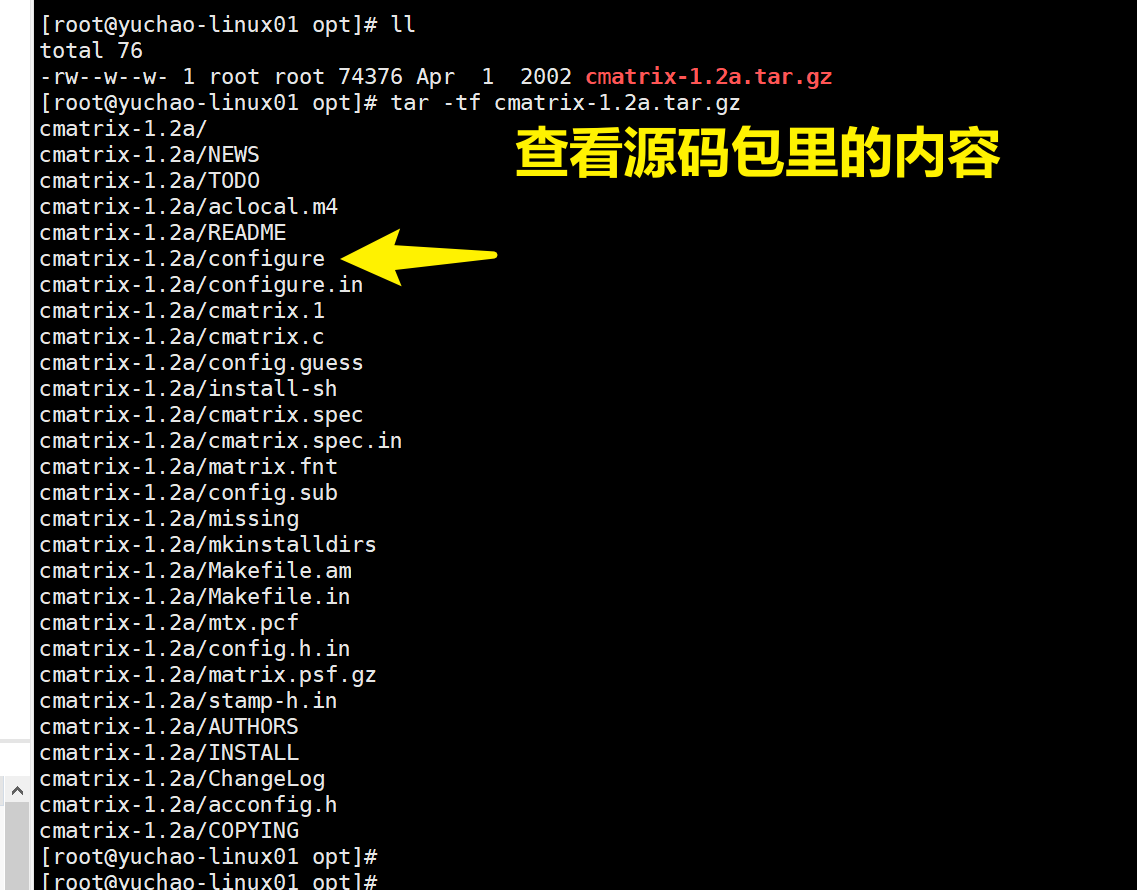
4.查看源码包内容
[root@yuchao-linux01 opt]# tar -tf cmatrix-1.2a.tar.gz
安装编译环境,依赖环境
gcc make 编译器
ncurses-devel 一些文本游戏都依赖这个库
yum install -y gcc make gcc-c++ ncurses-devel
2.编译三部曲
解压缩cmatrix源代码,开始编译三部曲
1.对编译环境配置,执行configure脚本,比如执行安装路径
1.解压缩,进入目录
[root@yuchao-linux01 opt]# ls
cmatrix-1.2a.tar.gz
[root@yuchao-linux01 opt]#
[root@yuchao-linux01 opt]# tar -zxf cmatrix-1.2a.tar.gz
[root@yuchao-linux01 opt]# cd cmatrix-1.2a/
[root@yuchao-linux01 cmatrix-1.2a]# ls
acconfig.h  cmatrix.1        config.guess  configure.in  Makefile.am    missing        README
aclocal.m4  cmatrix.c        config.h.in   COPYING       Makefile.in    mkinstalldirs  stamp-h.in
AUTHORS     cmatrix.spec     config.sub    INSTALL       matrix.fnt     mtx.pcf        TODO
ChangeLog   cmatrix.spec.in  configure     install-sh    matrix.psf.gz  NEWS
[root@yuchao-linux01 cmatrix-1.2a]#

2.配置安装路径,注意,是源码目录内
[root@yuchao-linux01 cmatrix-1.2a]# ./configure --prefix=/opt/cmatrix
2.对源码编译,对系统环境检查等
[root@yuchao-linux01 cmatrix-1.2a]# make
gcc -DHAVE_CONFIG_H -I. -I. -I.     -g -O2 -Wall -Wno-comment -c cmatrix.c
gcc  -g -O2 -Wall -Wno-comment  -o cmatrix  cmatrix.o  -lncurses  -lncurses
[root@yuchao-linux01 cmatrix-1.2a]#
3.安装到指定路径
[root@yuchao-linux01 cmatrix-1.2a]# make install
make[1]: Entering directory `/opt/cmatrix-1.2a'
/bin/sh ./mkinstalldirs /opt/cmatrix/bin
mkdir /opt/cmatrix
mkdir /opt/cmatrix/bin
  /usr/bin/install -c  cmatrix /opt/cmatrix/bin/cmatrix
make  install-man1
make[2]: Entering directory `/opt/cmatrix-1.2a'
/bin/sh ./mkinstalldirs /opt/cmatrix/man/man1
mkdir /opt/cmatrix/man
mkdir /opt/cmatrix/man/man1
 /usr/bin/install -c -m 644 ./cmatrix.1 /opt/cmatrix/man/man1/cmatrix.1
make[2]: Leaving directory `/opt/cmatrix-1.2a'
 Installing matrix fonts in /usr/lib/kbd/consolefonts...
make[1]: Leaving directory `/opt/cmatrix-1.2a'
[root@yuchao-linux01 cmatrix-1.2a]#
4.检查软件
[root@yuchao-linux01 cmatrix-1.2a]# cd /opt/
[root@yuchao-linux01 opt]# ls
cmatrix  cmatrix-1.2a  cmatrix-1.2a.tar.gz
[root@yuchao-linux01 opt]# cd /opt/cmatrix
[root@yuchao-linux01 cmatrix]# ls
bin  man
[root@yuchao-linux01 cmatrix]# ls bin
cmatrix
5.执行编译好的软件命令,注意这里是绝对路径
[root@yuchao-linux01 cmatrix]# /opt/cmatrix/bin/cmatrix
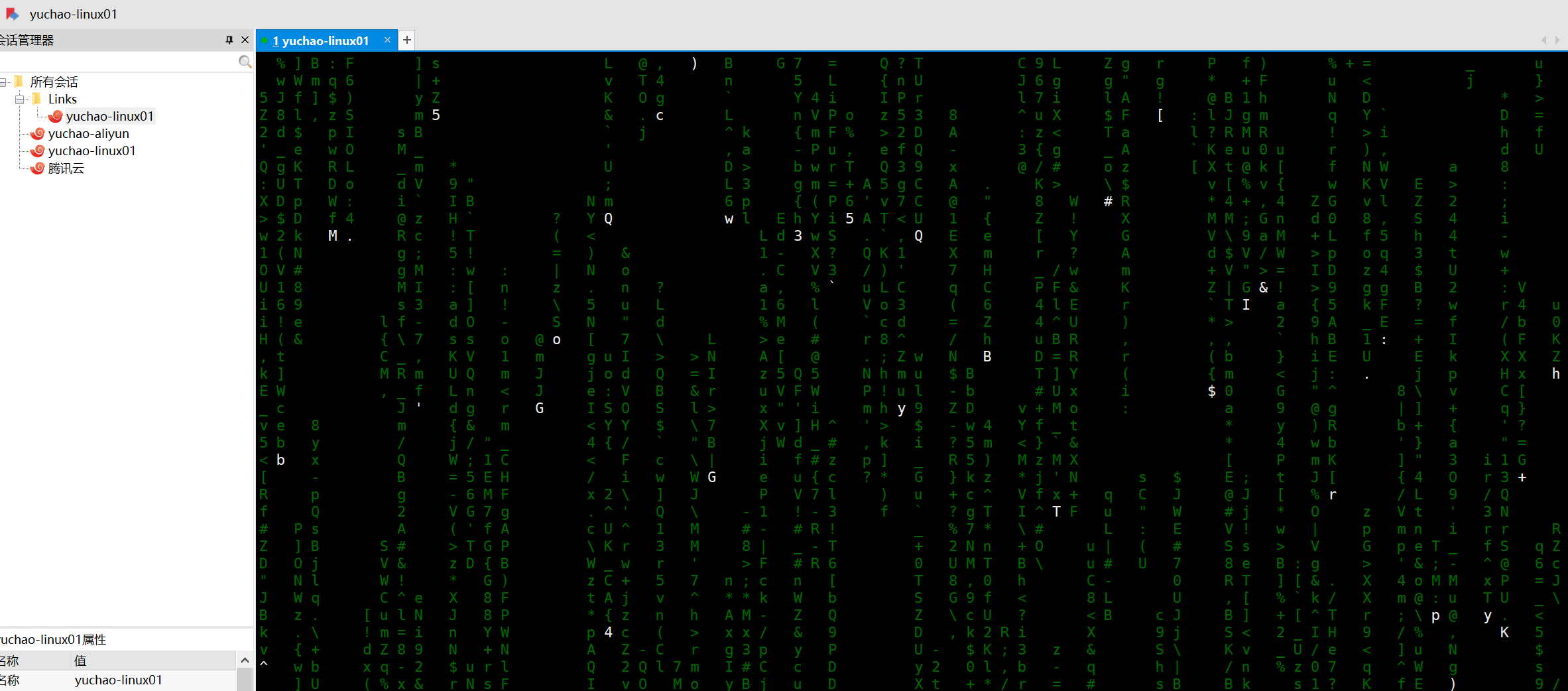
按q退出。
3.环境变量配置
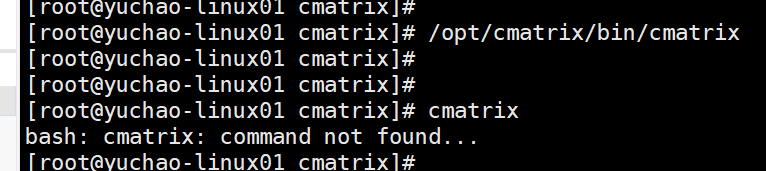
我们会发现直接执行命令,是找不到这个命令的,为什么?
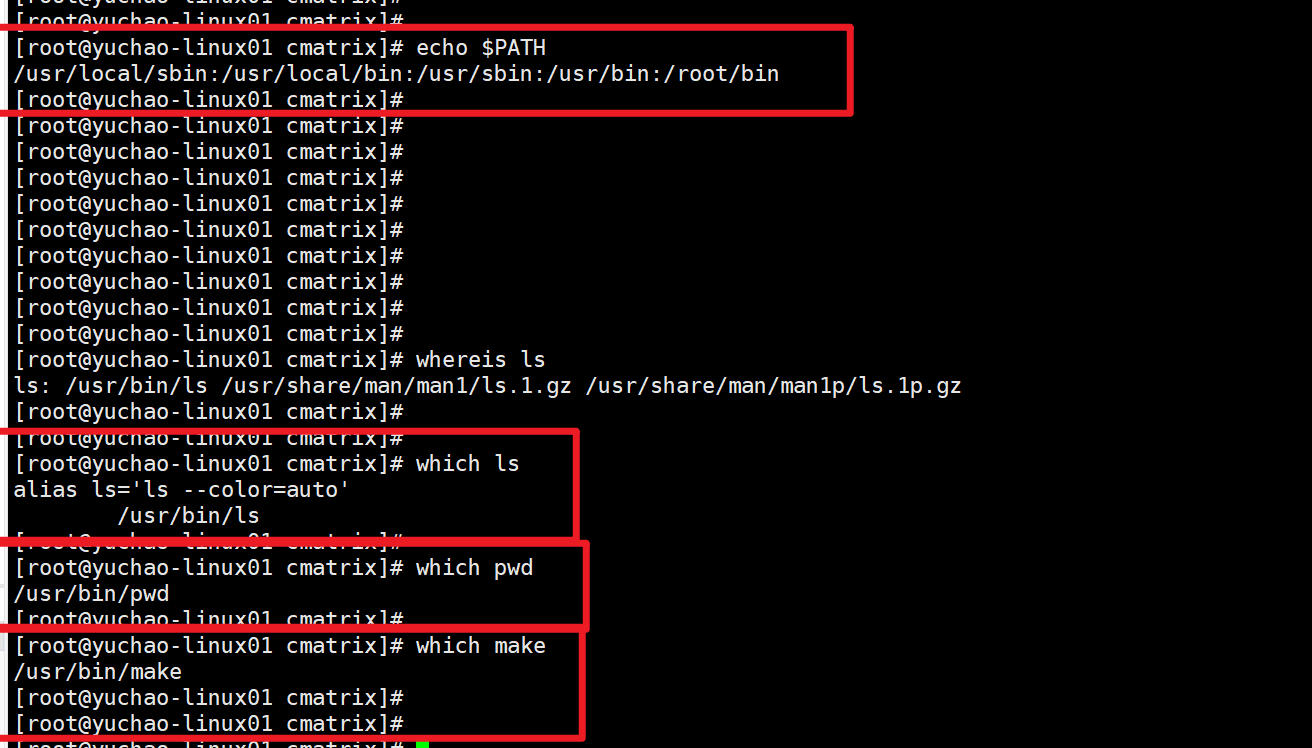
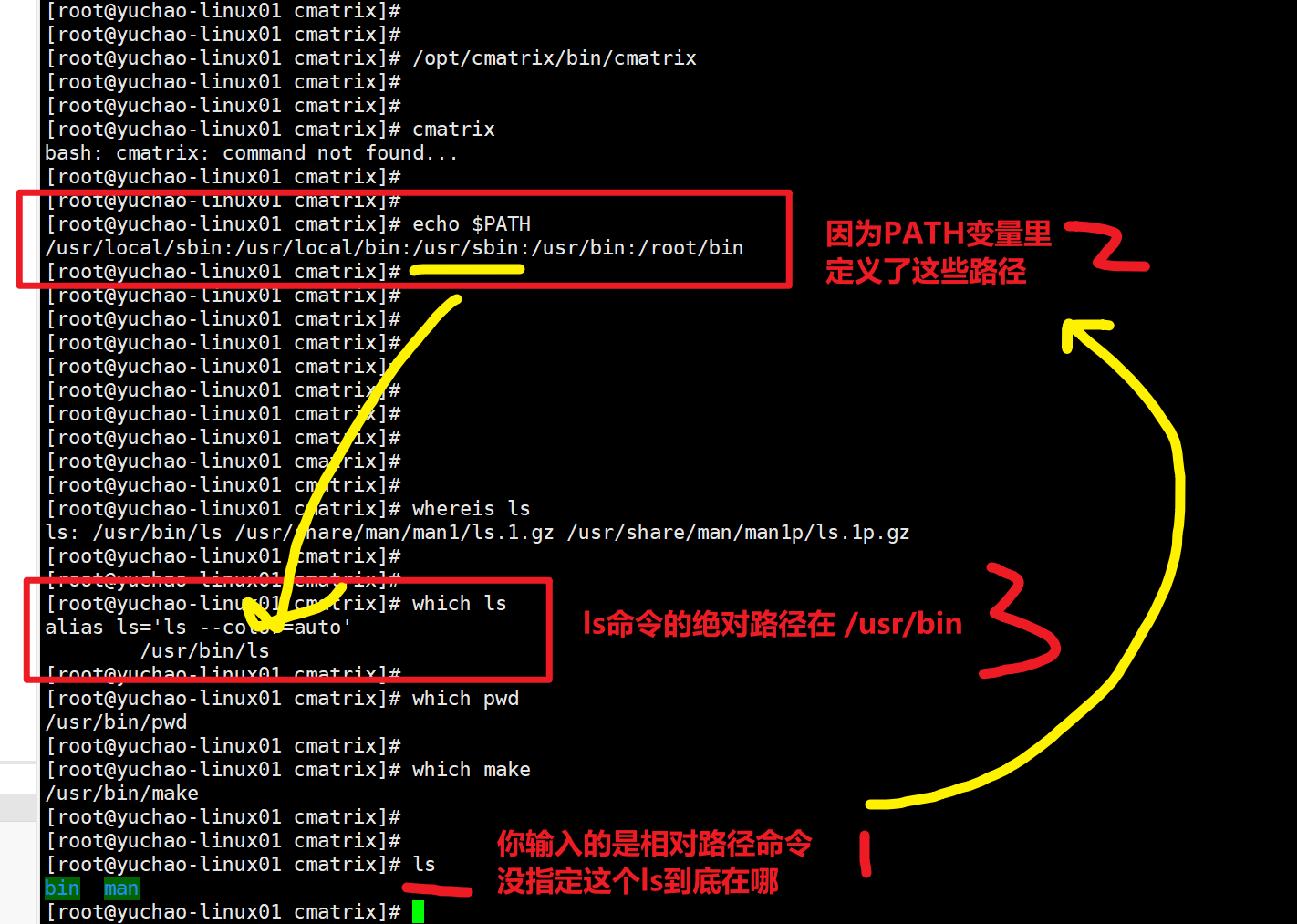
因为PATH的存在。
- ==分析错误产生的可能原因==
- 命令没有安装
- ==命令安装了但是找不到==
原因:命令安装了但是不能找到,原因是不知道去
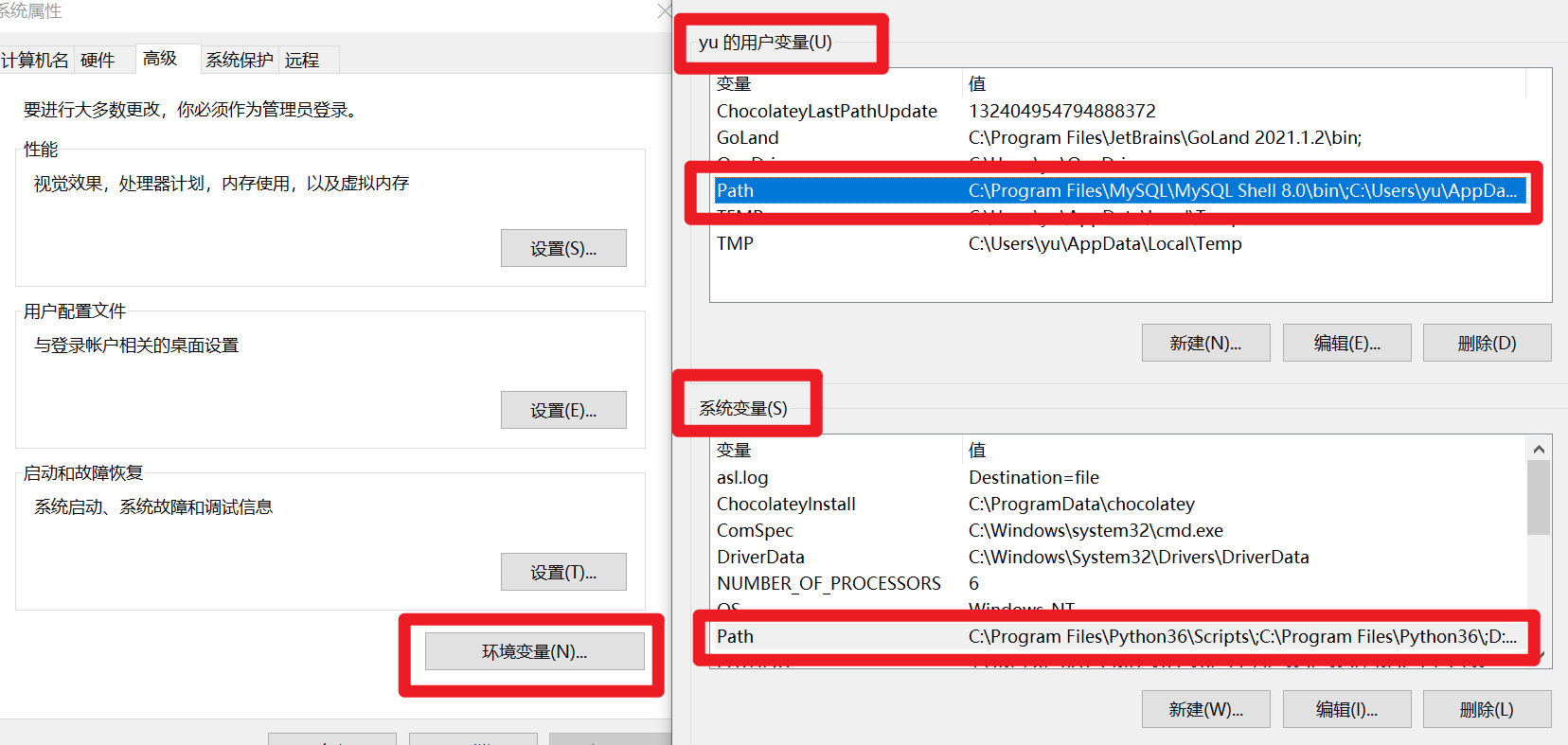
/opt/cmatrix/bin/cmatrix目录里找。 说明:系统中有==PATH==环境变量,该变量里保存的是命令的路径,只要PATH中有命令的所在路径,就可以找到。 - 命令敲错了(小白经常犯这个错)
- 解决问题
五、学习PATH
windows下的PATH变量

linux下的PATH变量
path是如何工作的。
1、PATH变量修改,添加路径
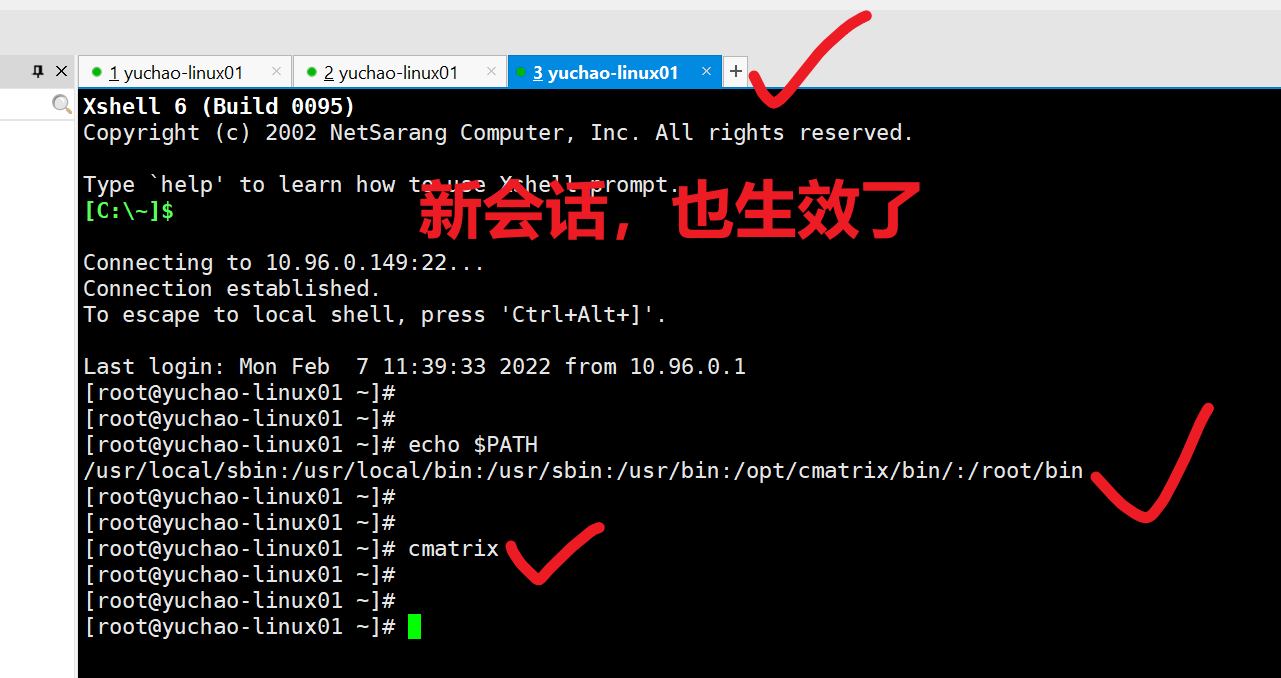
我们直接执行cmatrix发现没法使用,因此给它加入PATH
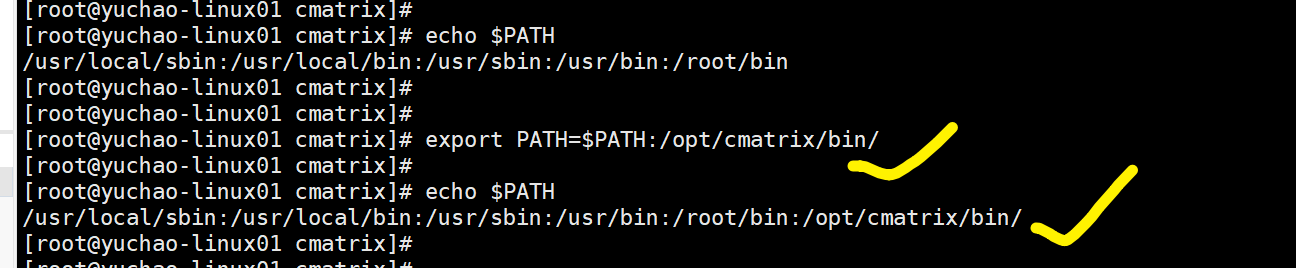
1.1、PATH临时添加
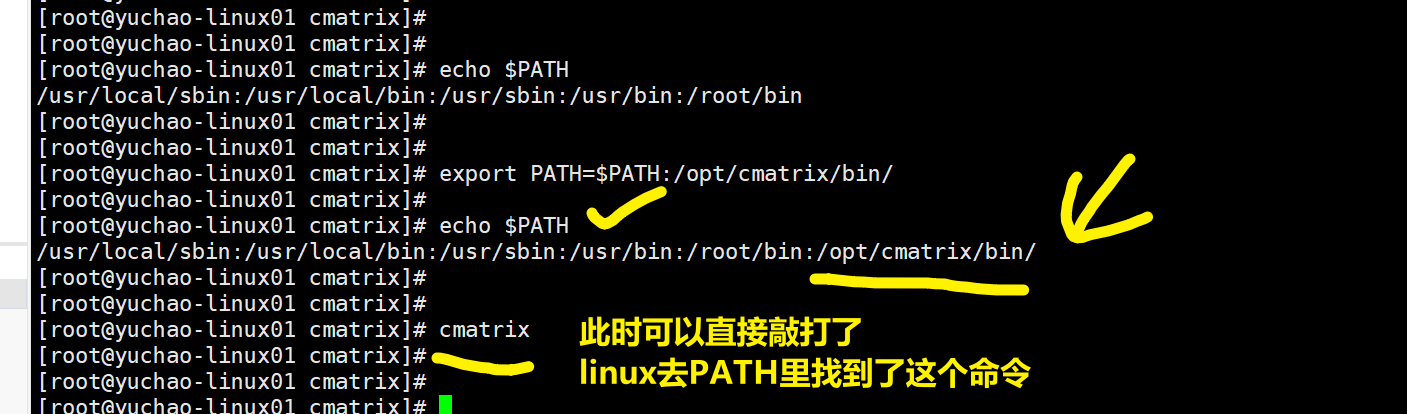
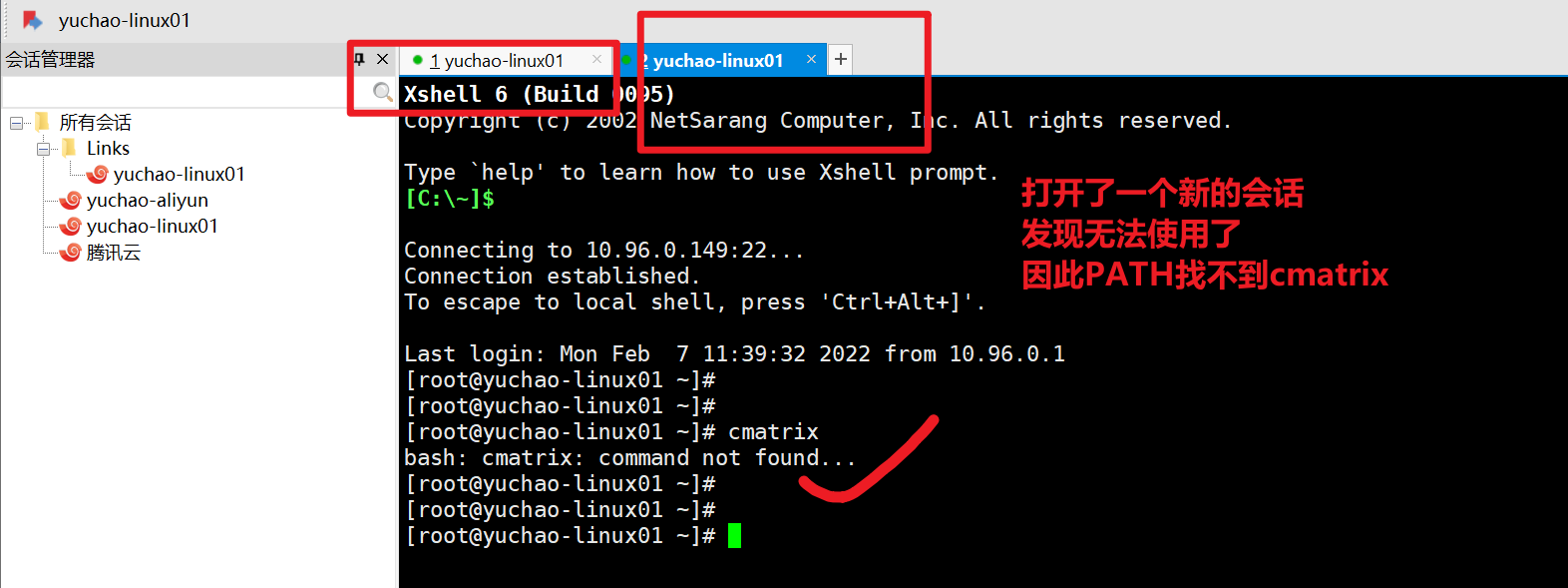
linux下修改变量的值,命令行里直接敲打,只对当前会话生效,重启,关闭会话后就丢失了。
export PATH=$PATH:/opt/cmatrix/bin/
可以用了
关闭会话后,这个变量值丢失了,恢复原样了。
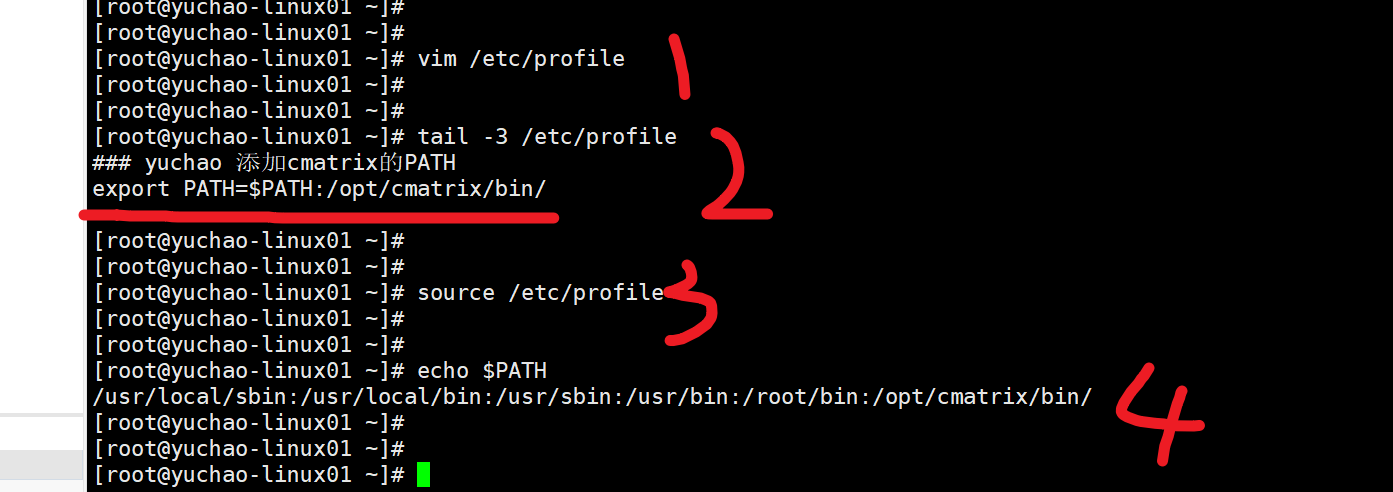
2、永久修改PATH
只需要吧这个修改语句,写入文件里,每次linux登录都会读取这个配置,即可实现。
[root@yuchao-linux01 ~]#
[root@yuchao-linux01 ~]#
[root@yuchao-linux01 ~]# vim /etc/profile
[root@yuchao-linux01 ~]#
[root@yuchao-linux01 ~]#
[root@yuchao-linux01 ~]# tail -3 /etc/profile
### yuchao 添加cmatrix的PATH
export PATH=$PATH:/opt/cmatrix/bin/

[root@yuchao-linux01 ~]#
[root@yuchao-linux01 ~]#
[root@yuchao-linux01 ~]# source /etc/profile
[root@yuchao-linux01 ~]#
[root@yuchao-linux01 ~]#
[root@yuchao-linux01 ~]# echo $PATH
/usr/local/sbin:/usr/local/bin:/usr/sbin:/usr/bin:/root/bin:/opt/cmatrix/bin/
[root@yuchao-linux01 ~]#
[root@yuchao-linux01 ~]#
[root@yuchao-linux01 ~]#
3、添加man手册
对于源码编译的软件,默认可能不存在man手册,找不到使用教程,可以这么来。
1.找到软件本身提供的man手册目录
[root@yuchao-linux01 ~]# ls /opt/cmatrix
bin  man
2.加入linux的man命令配置文件
1.打开配置文件
[root@yuchao-linux01 ~]# vim /etc/man_db.conf


加入如下内容
## yuchao 添加cmatrix的man路径
MANDATORY_MANPATH /opt/cmatrix/man


2.加入后,即可使用man手册,查看软件帮助信息了
[root@yuchao-linux01 ~]# man cmatrix
4、卸载编译软件
当你编译的软件不想要了,如何卸载。
1.进入软件源码

[root@yuchao-linux01 ~]# cd /opt/
[root@yuchao-linux01 opt]# ls
cmatrix  cmatrix-1.2a  cmatrix-1.2a.tar.gz
[root@yuchao-linux01 opt]# cd cmatrix-1.2a/
[root@yuchao-linux01 cmatrix-1.2a]# ls
acconfig.h  cmatrix    cmatrix.spec     config.h       config.sub    INSTALL      Makefile.in    mkinstalldirs  stamp-h
aclocal.m4  cmatrix.1  cmatrix.spec.in  config.h.in    configure     install-sh   matrix.fnt     mtx.pcf        stamp-h.in
AUTHORS     cmatrix.c  config.cache     config.log     configure.in  Makefile     matrix.psf.gz  NEWS           TODO
ChangeLog   cmatrix.o  config.guess     config.status  COPYING       Makefile.am  missing        README
[root@yuchao-linux01 cmatrix-1.2a]#
[root@yuchao-linux01 cmatrix-1.2a]#
[root@yuchao-linux01 cmatrix-1.2a]# make uninstall
2.执行卸载make uninstall
[root@yuchao-linux01 cmatrix-1.2a]# make uninstall
list='cmatrix'; for p in $list; do \
  rm -f /opt/cmatrix/bin/`echo $p|sed 's/$//'|sed 's,x,x,'|sed 's/$//'`; \
done
make  uninstall-man1
make[1]: Entering directory `/opt/cmatrix-1.2a'
 rm -f /opt/cmatrix/man/man1/cmatrix.1
make[1]: Leaving directory `/opt/cmatrix-1.2a'
[root@yuchao-linux01 cmatrix-1.2a]#


你会发现,该骇客帝国命令消失了
[root@yuchao-linux01 cmatrix-1.2a]# ls /opt/cmatrix
bin  man
[root@yuchao-linux01 cmatrix-1.2a]# ls /opt/cmatrix/bin/
[root@yuchao-linux01 cmatrix-1.2a]#


[root@yuchao-linux01 cmatrix-1.2a]# cmatrix
-bash: /opt/cmatrix/bin/cmatrix: No such file or directory
3.卸载编译、配置过程
[root@yuchao-linux01 cmatrix-1.2a]# make distclean
rm -f config.h
rm -f *.tab.c
rm -f TAGS ID
rm -f Makefile cmatrix.spec
rm -f config.cache config.log stamp-h stamp-h[0-9]*
test -z "cmatrix" || rm -f cmatrix
rm -f *.o core *.core
rm -f config.status
5、总结
编译安装三部曲、卸载三部曲,超哥都给大家讲完了。
编译,就是通过编译工具,把高级语言(码农写的C语言程序)变成计算机可以识别的2进制语言,计算机只认识1和0。
编译程序,就是使用编译工具,把高级语言开发的程序变成计算机可以识别的二进制程序,把一堆C语言写的源码,变成你可以直接执行的一个命令。
六、免安装(二进制包)
- 上述说过了二进制包,包括了
- rpm格式(需要rpm -ivh安装)
- tar.gz格式(直接tar -zxvf解压即可)
- 一般说的二进制包,指的更多是rpm包。
- 我们可以用vim编辑器,打开/usr/bin/ls或者,windows下的exe文件、或者rpm安装包,都是010101二进制代码(计算机以16进制显示),都是给机器阅读的二进制数据。人类无法阅读了。
二进制包特点
二进制软件包和 rpm 软件包区别在于
1. rpm包是打包好的安装程序,关于软件安装路径固定好了,以及配置文件一般默认放在/etc下了,二进制软件包,所有配置文件,可执行程序,都在压缩包里。

2.rpm包安装的程序,卸载时需要清理较多目录文件,而二进制安装包,只需要删除一个文件夹即可。

3. rpm包涉及关系,升级麻烦,二进制包只需要删除旧的软件,替换为新的即可。
6.1 二进制方式,安装java
1.下载二进制java的软件包
https://yuchaoit.cn/jdk-8u221-linux-x64.tar.gz

2.解压缩即可
[root@yuchao-linux01 opt]# tar -zxvf jdk-8u221-linux-x64.tar.gz

[root@yuchao-linux01 opt]# ls
jdk1.8.0_221  jdk-8u221-linux-x64.tar.gz

3.创建软连接
[root@yuchao-linux01 opt]# ln -s jdk1.8.0_221 jdk
[root@yuchao-linux01 opt]#
[root@yuchao-linux01 opt]# ll
total 190524
lrwxrwxrwx 1 root root        12 Mar 19 15:11 jdk -> jdk1.8.0_221
drwxr-xr-x 7   10  143       245 Jul  4  2019 jdk1.8.0_221
-rw-r--r-- 1 root root 195094741 Mar 19 15:09 jdk-8u221-linux-x64.tar.gz

4.写入PATH变量
cp /etc/profile{,.bak}

cat >>/etc/profile <<EOF
export JAVA_HOME=/opt/jdk
export PATH=$PATH:$JAVA_HOME/bin
EOF


5.检查PATH
# 注销登录后,查看PATH
exit
# 再次登录
[root@yuchao-linux01 opt]# echo $PATH
/usr/local/sbin:/usr/local/bin:/usr/sbin:/usr/bin:/root/bin:/bin:/opt/jdk/bin


6.验证java是否可用
[root@yuchao-linux01 opt]# java -version
java version "1.8.0_221"
Java(TM) SE Runtime Environment (build 1.8.0_221-b11)
Java HotSpot(TM) 64-Bit Server VM (build 25.221-b11, mixed mode)

7.试试java的hello world
先编译,再运行
准备代码
[root@yuchao-linux01 opt]# cat HelloWorld.java
public class HelloWorld {
    public static void main(String []args) {
       System.out.println("超哥带你学linux");
    }
}


编译代码,再运行
[root@yuchao-linux01 opt]# javac HelloWorld.java

[root@yuchao-linux01 opt]# java HelloWorld
超哥带你学linux

确认java正确可以使用了。
你已经配置好了java开发环境。
七、Ubuntu软件包管理
7.0 准备好乌班图机器
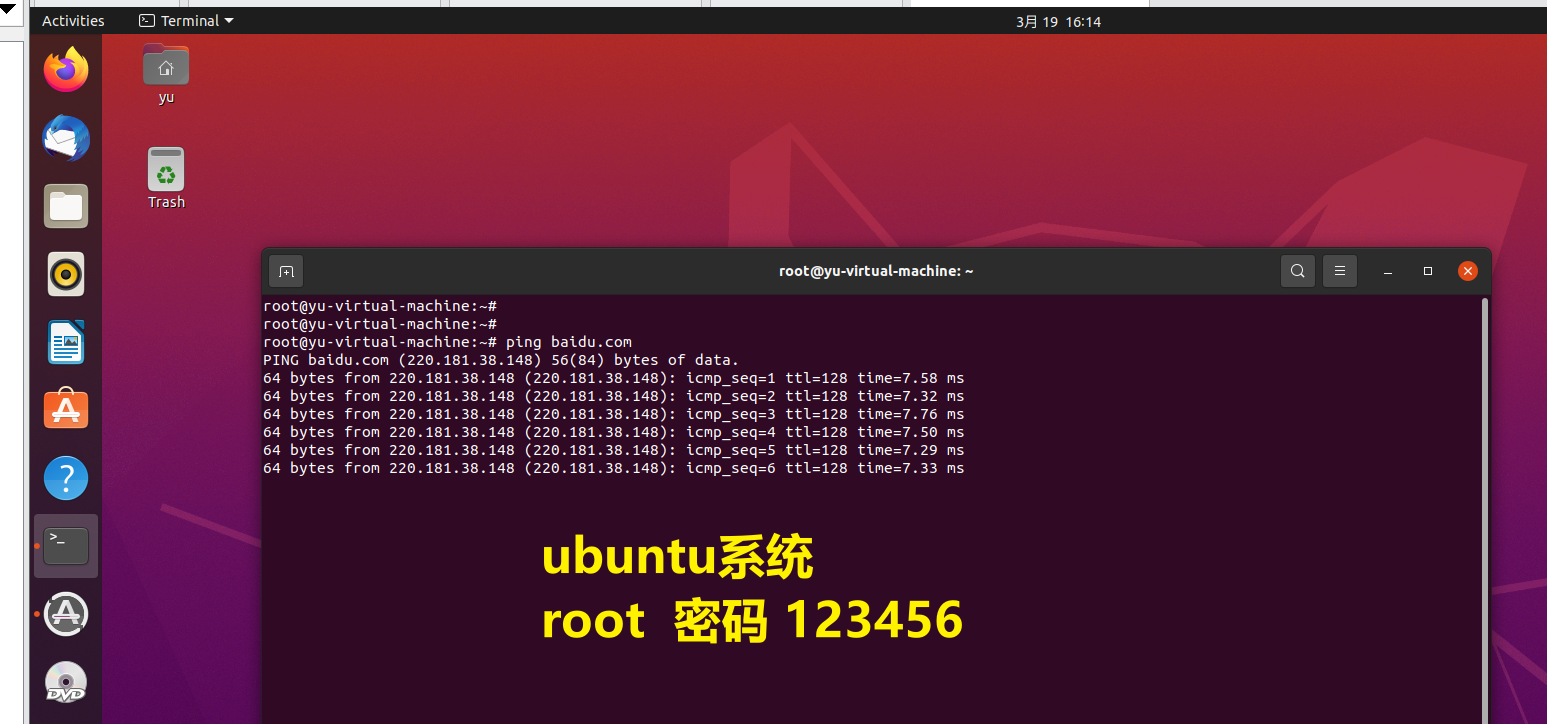
开启ssh服务
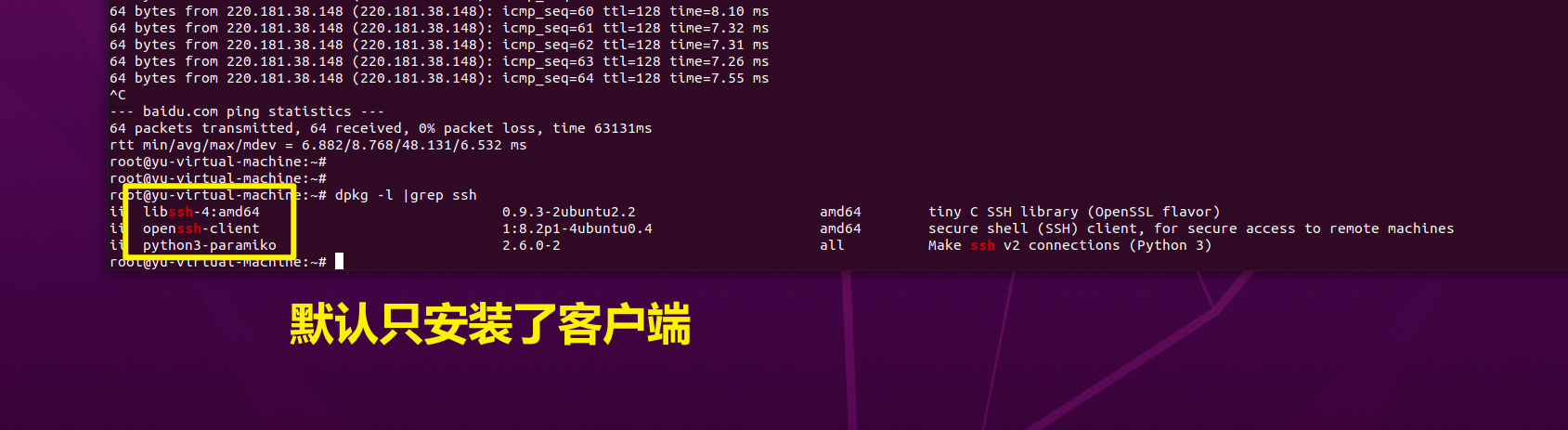
1.检查是否安装了ssh服务端,默认是没开启的,只安装了客户端
dpkg -l | grep ssh
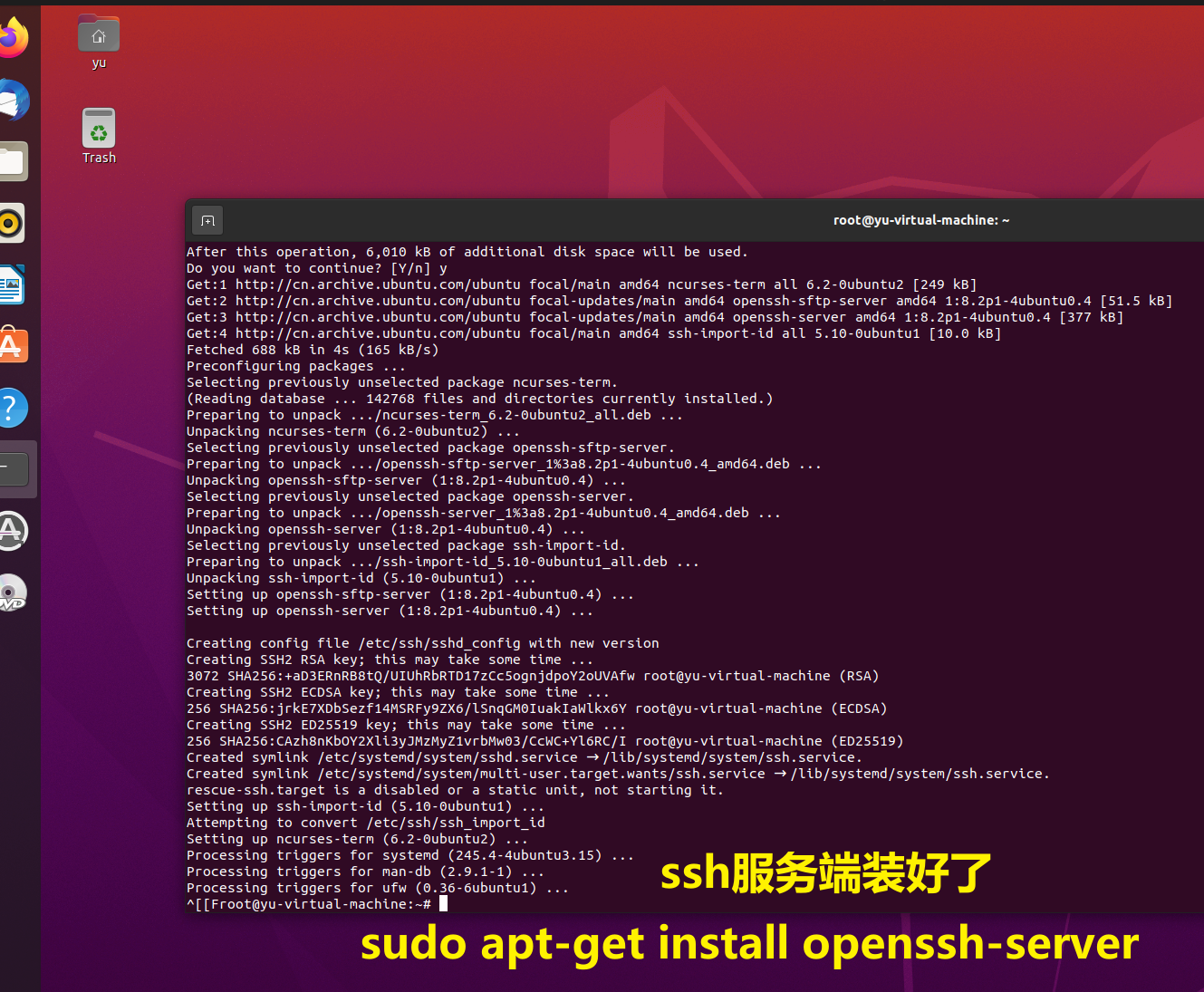
2.安装服务端
sudo apt-get install openssh-server
再次查看ssh服务端
dpkg -l | grep ssh

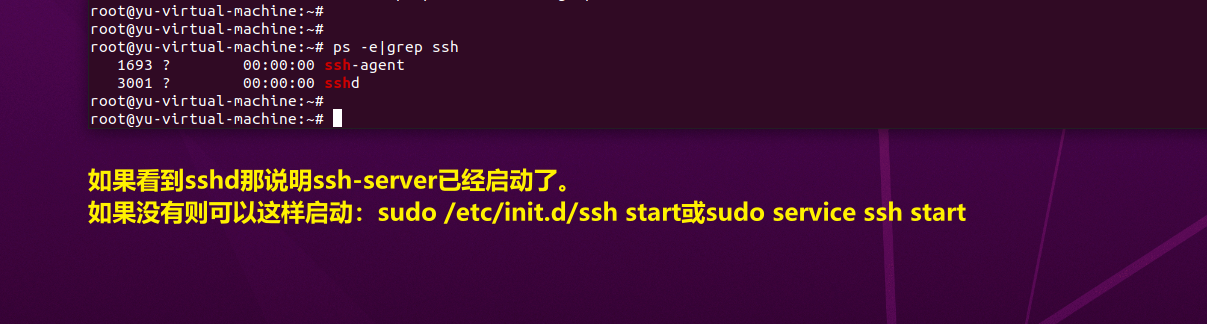
如果看到sshd那说明ssh-server已经启动了。
如果没有则可以这样启动:sudo /etc/init.d/ssh start或sudo service ssh start
查看ubuntu机器ip,远程连接即可
root@yu-virtual-machine:~# ip addr
1: lo: <LOOPBACK,UP,LOWER_UP> mtu 65536 qdisc noqueue state UNKNOWN group default qlen 1000
    link/loopback 00:00:00:00:00:00 brd 00:00:00:00:00:00
    inet 127.0.0.1/8 scope host lo
       valid_lft forever preferred_lft forever
    inet6 ::1/128 scope host
       valid_lft forever preferred_lft forever
2: ens33: <BROADCAST,MULTICAST,UP,LOWER_UP> mtu 1500 qdisc fq_codel state UP group default qlen 1000
    link/ether 00:0c:29:47:5e:4d brd ff:ff:ff:ff:ff:ff
    altname enp2s1
    inet 10.96.0.133/24 brd 10.96.0.255 scope global dynamic noprefixroute ens33
       valid_lft 994sec preferred_lft 994sec
    inet6 fe80::c9f7:6a9f:7161:1db/64 scope link noprefixroute
       valid_lft forever preferred_lft forever
默认ubuntu禁止了root登录,用普通用户登录,然后sudo即可
# yu,密码123456
ssh yu@10.96.0.133


Connecting to 10.96.0.133:22...
Connection established.
To escape to local shell, press 'Ctrl+Alt+]'.

Welcome to Ubuntu 20.04.4 LTS (GNU/Linux 5.13.0-30-generic x86_64)

 * Documentation:  https://help.ubuntu.com
 * Management:     https://landscape.canonical.com
 * Support:        https://ubuntu.com/advantage

13 updates can be applied immediately.
12 of these updates are standard security updates.
To see these additional updates run: apt list --upgradable

Your Hardware Enablement Stack (HWE) is supported until April 2025.
Last login: Sat Mar 19 16:22:24 2022 from 10.96.0.1
yu@yu-virtual-machine:~$
yu@yu-virtual-machine:~$
yu@yu-virtual-machine:~$ sudo su -
[sudo] password for yu:
root@yu-virtual-machine:~#
root@yu-virtual-machine:~#
root@yu-virtual-machine:~#
root@yu-virtual-machine:~# whoami
root
7.1 ubuntu软件包安装方式
和centos管理方式一样,只不过软件包的格式,不是rpm包,而是deb包,但是其他管理方式,如源码编译三部曲,二进制包安装都一样。
| 软件包种类 | 特点 | 缺点 |
|---|---|---|
| deb包 | 编译好了,安装简单,安装参数固定 | 软件版本较低,无法定制化安装 |
| 源码包 | 手动编译安装,繁琐,容易出错 | 软件版本自由,安装自由扩展 |
| 二进制包 | 解压即用 | 无法源码,无法定制化 |
7.2 dpkg安装nginx
dpkg相当于centos的rpm管理命令,用于管理已经下载好的本地软件包,例如
*.rpm后缀的软件包
同理就是*.deb软件包
常用命令参数
dpkg -i package.deb                  #安装包
dpkg -r package                      #删除包,保留配置文件
dpkg -P package                       #删除包(包括配置文件)
dpkg -L package                      #列出与该包关联的文件
dpkg -l package                      #显示该包的版本
dpkg --unpack package.deb        #解开 deb 包的内容
dpkg -S keyword                      #搜索所属的包内容
dpkg -s package                 # 查询软件包详细信息
dpkg -l                              #列出当前已安装的包
dpkg -c package.deb                 #列出 deb 包的内容
dpkg --configure package         #配置包
dpkg命令实践
1. 准备好软件包,从于超老师要即可,yuchaoit.cn/nginx_1.18.0-2~focal_amd64.deb
yu@yu-virtual-machine:~$ ll nginx_1.18.0-2~focal_amd64.deb
-rwxr-xr-x 1 yu yu 853262 Mar 19 17:28 nginx_1.18.0-2~focal_amd64.deb*

2.查看软件包信息
yu@yu-virtual-machine:~$ dpkg -c nginx_1.18.0-2~focal_amd64.deb

3.安装软件
yu@yu-virtual-machine:~$ sudo dpkg -i nginx_1.18.0-2~focal_amd64.deb
[sudo] password for yu:
Selecting previously unselected package nginx.
(Reading database ... 145615 files and directories currently installed.)
Preparing to unpack nginx_1.18.0-2~focal_amd64.deb ...
----------------------------------------------------------------------

Thanks for using nginx!

Please find the official documentation for nginx here:
* http://nginx.org/en/docs/

Please subscribe to nginx-announce mailing list to get
the most important news about nginx:
* http://nginx.org/en/support.html

Commercial subscriptions for nginx are available on:
* http://nginx.com/products/

----------------------------------------------------------------------
Unpacking nginx (1.18.0-2~focal) ...
Setting up nginx (1.18.0-2~focal) ...
Created symlink /etc/systemd/system/multi-user.target.wants/nginx.service → /lib/systemd/system/nginx.service.
Processing triggers for systemd (245.4-4ubuntu3.15) ...
Processing triggers for man-db (2.9.1-1) ...
yu@yu-virtual-machine:~$

4.启动ubuntu下的nginx程序
yu@yu-virtual-machine:~$ systemctl start  nginx
==== AUTHENTICATING FOR org.freedesktop.systemd1.manage-units ===
Authentication is required to start 'nginx.service'.
Authenticating as: yu,,, (yu)
Password:
==== AUTHENTICATION COMPLETE ===

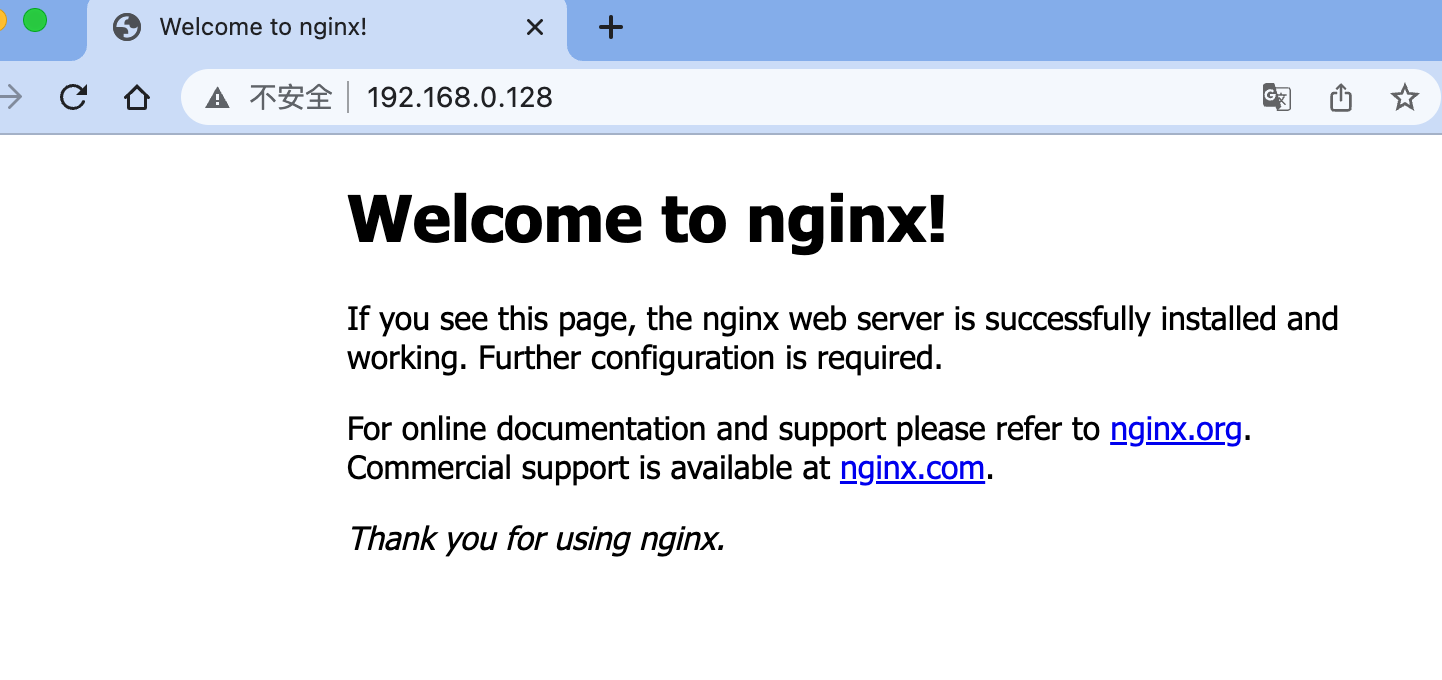
5.测试访问nginx


6.最后再卸载nginx
yu@yu-virtual-machine:~$ sudo dpkg -P nginx
(Reading database ... 148196 files and directories currently installed.)
Removing nginx (1.18.0-2~focal) ...
Processing triggers for man-db (2.9.1-1) ...
7.3 apt常用命令(参考yum)
apt是ubuntu下的包(deb)管理工具
1. apt类似centos7的yum
2. apt-get是第一版的包管理工具,最稳定
3. apt是改进后的包管理命令,功能更多
4. apt的源文件只有一个,而yum源会有很多文件。
apt怎么用
# 搜索软件包,类似于 rpm -qa |grep nginx
yu@yu-virtual-machine:~$ apt-cache search nginx

# 下载nginx的deb包,类似于yum获取rpm包。
apt download apache2

# 在线安装程序
yu@yu-virtual-machine:~$ sudo apt install apache2

# 重新安装程序
yu@yu-virtual-machine:~$ sudo apt --reinstall install apache2

# 卸载程序
apt remove apache2

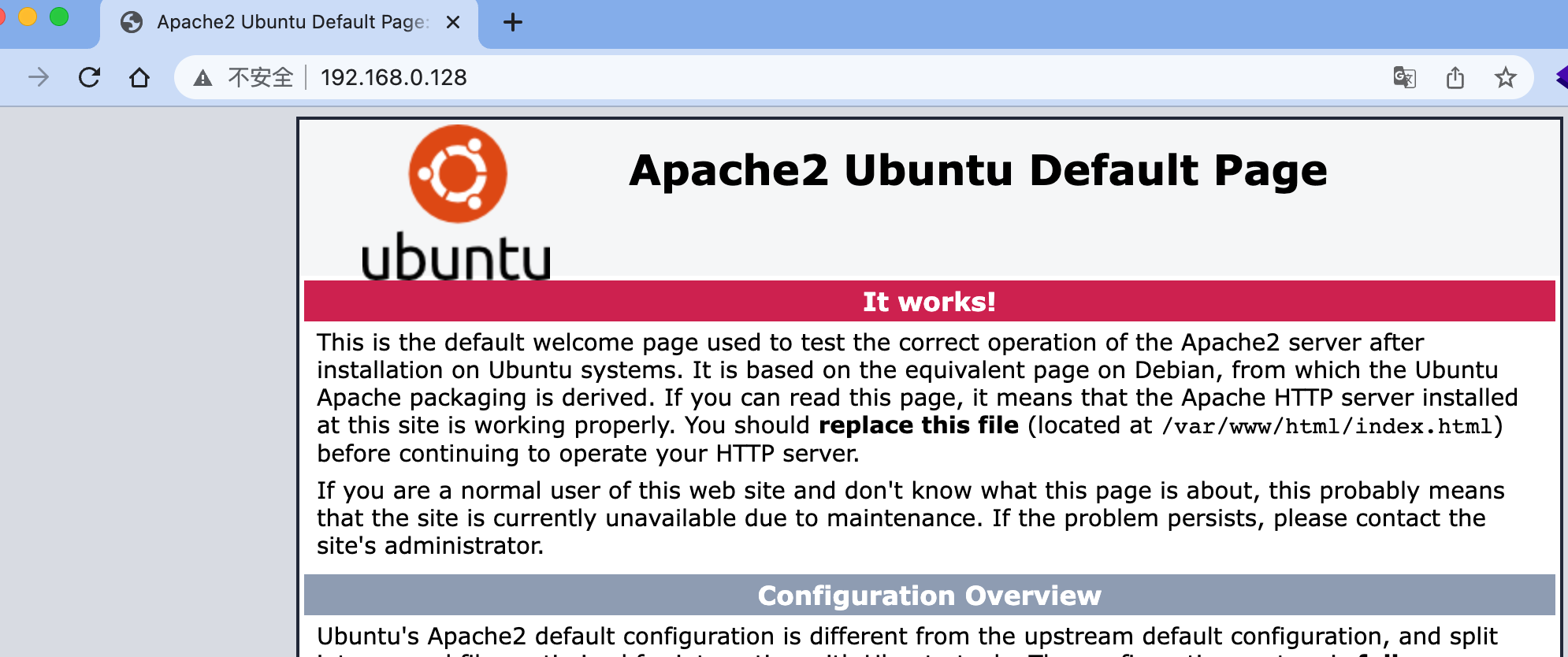
# 启动apache2
==== AUTHENTICATING FOR org.freedesktop.systemd1.manage-units ===
Authentication is required to start 'apache2.service'.
Authenticating as: yu,,, (yu)
Password:
==== AUTHENTICATION COMPLETE ===
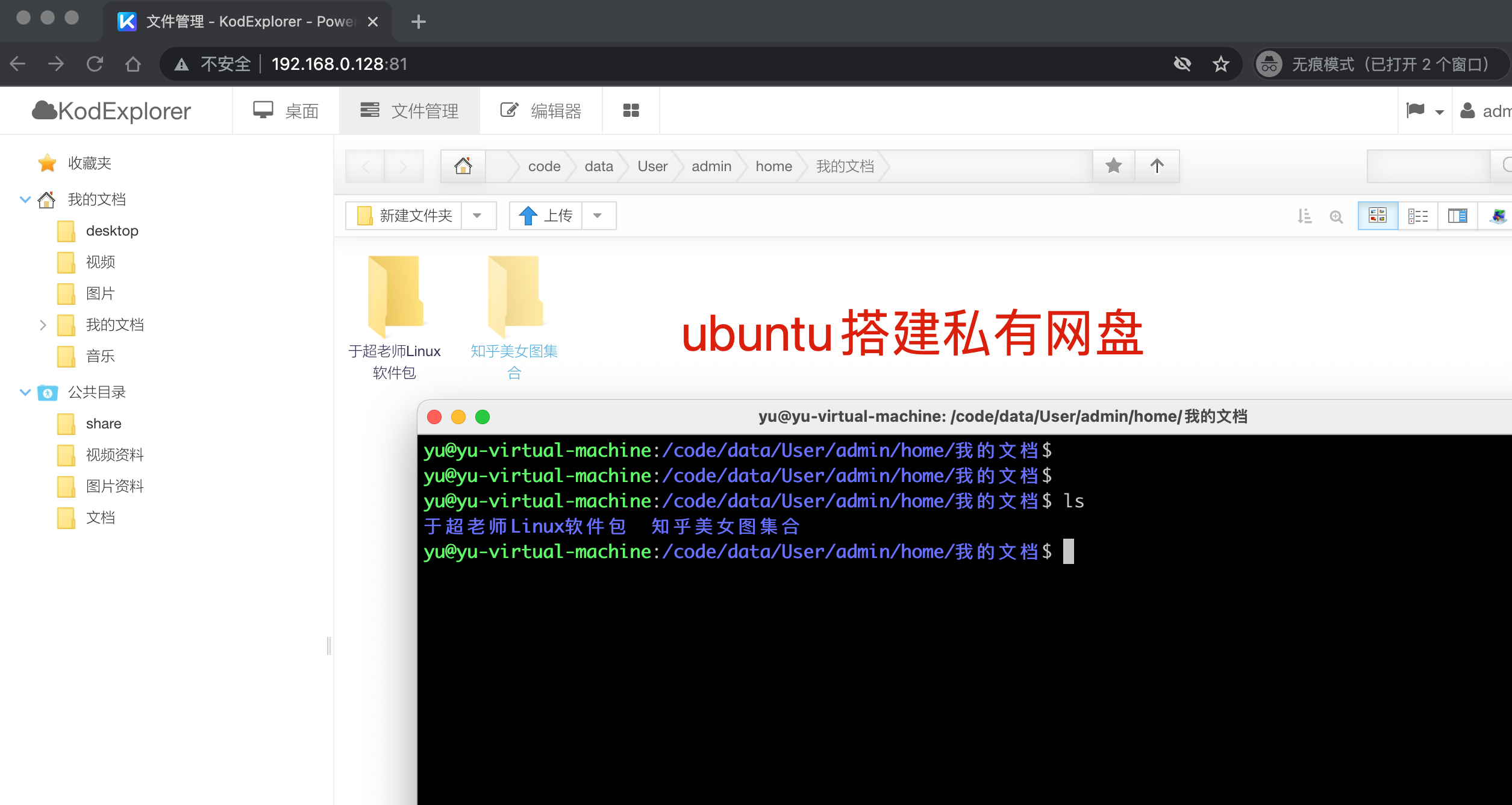
7.4 ubuntu搭建私有云网盘
1.配置apt源

yu@yu-virtual-machine:~$ sudo apt install vim
yu@yu-virtual-machine:~$ sudo cp /etc/apt/sources.list{,.bak}
yu@yu-virtual-machine:~$ sudo vim /etc/apt/sources.list
改为如下
yu@yu-virtual-machine:~$ cat  /etc/apt/sources.list
# 默认注释了源码镜像以提高 apt update 速度,如有需要可自行取消注释
deb https://mirrors.tuna.tsinghua.edu.cn/ubuntu/ focal main restricted universe multiverse
# deb-src https://mirrors.tuna.tsinghua.edu.cn/ubuntu/ focal main restricted universe multiverse
deb https://mirrors.tuna.tsinghua.edu.cn/ubuntu/ focal-updates main restricted universe multiverse
# deb-src https://mirrors.tuna.tsinghua.edu.cn/ubuntu/ focal-updates main restricted universe multiverse
deb https://mirrors.tuna.tsinghua.edu.cn/ubuntu/ focal-backports main restricted universe multiverse
# deb-src https://mirrors.tuna.tsinghua.edu.cn/ubuntu/ focal-backports main restricted universe multiverse
deb https://mirrors.tuna.tsinghua.edu.cn/ubuntu/ focal-security main restricted universe multiverse
# deb-src https://mirrors.tuna.tsinghua.edu.cn/ubuntu/ focal-security main restricted universe multiverse

# 预发布软件源,不建议启用
# deb https://mirrors.tuna.tsinghua.edu.cn/ubuntu/ focal-proposed main restricted universe multiverse
# deb-src https://mirrors.tuna.tsinghua.edu.cn/ubuntu/ focal-proposed main restricted universe multiverse
yu@yu-virtual-machine:~$

2.更新apt源
yu@yu-virtual-machine:~$ sudo apt update


3.安装nginx+php
sudo apt install php7.4 php7.4-fpm php7.4-gd php7.4-curl php7.4-mbstring nginx unzip -y

查看nginx版本
yu@yu-virtual-machine:~$ nginx -v
nginx version: nginx/1.18.0 (Ubuntu)


4.修改nginx配置文件
yu@yu-virtual-machine:~$ sudo vim /etc/nginx/conf.d/yuchao_linux.conf

server{
        listen 81;
        server_name yuchao_linux.top;
        root /code;
        index index.php index.html;
        location ~ \.php$ {
             root        /code;
             fastcgi_pass   127.0.0.1:9000;
             fastcgi_index  index.php;
             fastcgi_param  SCRIPT_FILENAME  $document_root$fastcgi_script_name;
             include        fastcgi_params;
         }
}


5.设置php-fpm监听模式
yu@yu-virtual-machine:~$ sudo vim /etc/php/7.4/fpm/pool.d/www.conf

 36 ;listen = /run/php/php7.4-fpm.sock
 37 listen = 127.0.0.1:9000

6.下载网盘源代码,解压缩
yu@yu-virtual-machine:~$ sudo mkdir /code
yu@yu-virtual-machine:~$ cd /code
yu@yu-virtual-machine:/code$ sudo wget http://static.kodcloud.com/update/download/kodexplorer4.40.zip

yu@yu-virtual-machine:/code$ sudo unzip -d /code kodexplorer4.40.zip
yu@yu-virtual-machine:/code$ sudo chown -R www-data:www-data /code

7.启动测试访问
yu@yu-virtual-machine:/code$ sudo systemctl stop apache2.service
yu@yu-virtual-machine:/code$ sudo systemctl start nginx php7.4-fpm

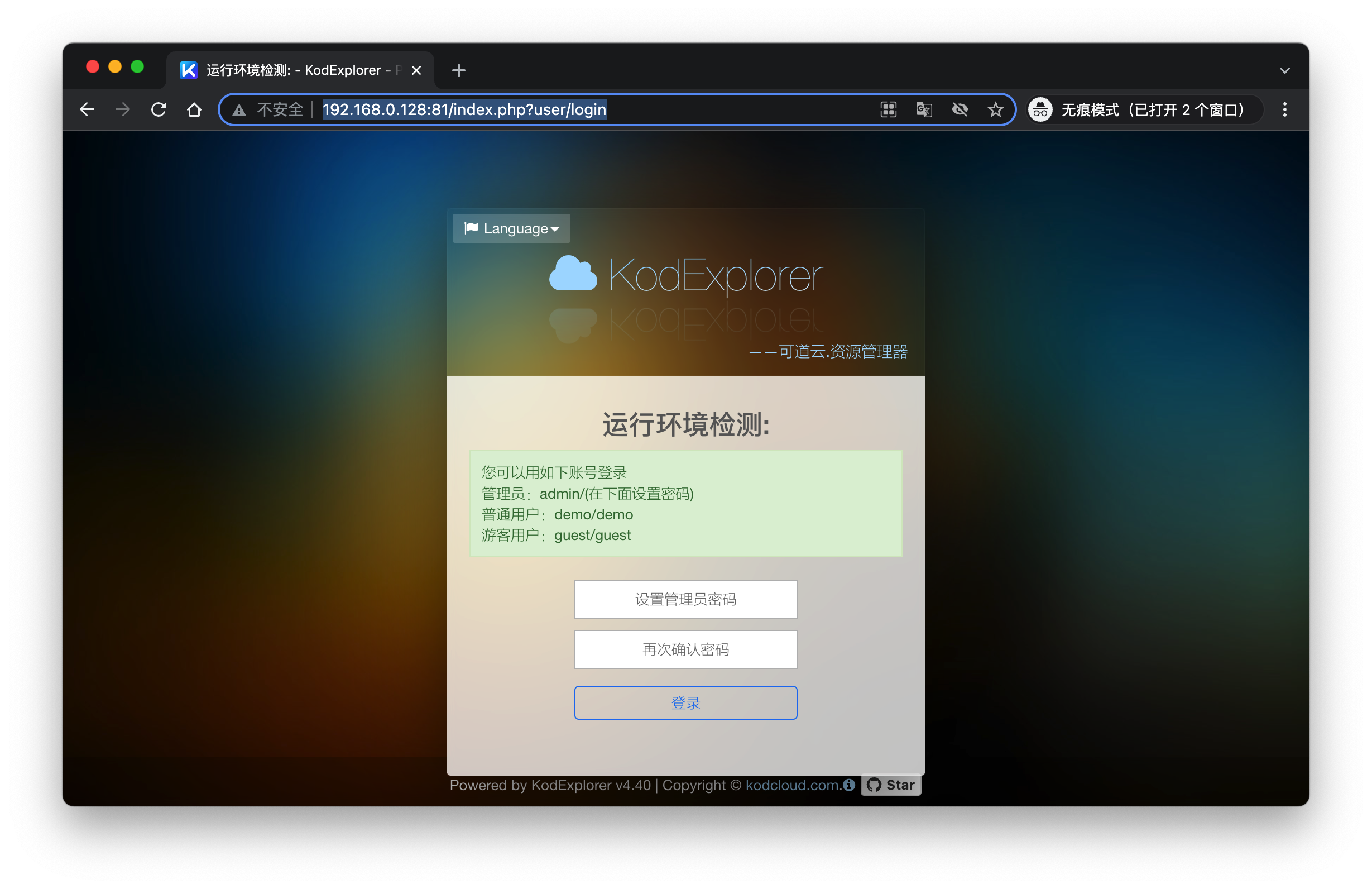
8.访问ubuntu机器
http://192.168.0.128:81/index.php?user/login
7.5 搭建博客系统
1.安装java环境
sudo apt install openjdk-8-jre-headless -y

2.查看java版本
yu@yu-virtual-machine:~$ sudo java -version
openjdk version "1.8.0_312"
OpenJDK Runtime Environment (build 1.8.0_312-8u312-b07-0ubuntu1~20.04-b07)
OpenJDK 64-Bit Server VM (build 25.312-b07, mixed mode)


3.下载博客源码
sudo wget https://dl.halo.run/release/halo-1.4.2.jar

4.运行博客
yu@yu-virtual-machine:/my-site$ sudo java -jar halo-1.4.2.jar

    __  __      __
   / / / /___ _/ /___
  / /_/ / __ `/ / __ \
 / __  / /_/ / / /_/ /
/_/ /_/\__,_/_/\____/

Version: 1.4.2
2022-03-19 19:38:26.317  INFO 48910 --- [           main] run.halo.app.Application                 : Starting Application v1.4.2 on yu-virtual-machine with PID 48910 (/my-site/halo-1.4.2.jar started by root in /my-site)
2022-03-19 19:38:26.320  INFO 48910 --- [           main] run.halo.app.Application                 : No active profile set, falling back to default profiles: default
2022-03-19 19:38:28.463  INFO 48910 --- [           main] .s.d.r.c.RepositoryConfigurationDelegate : Bootstrapping Spring Data JPA repositories in DEFAULT mode.
2022-03-19 19:38:28.640  INFO


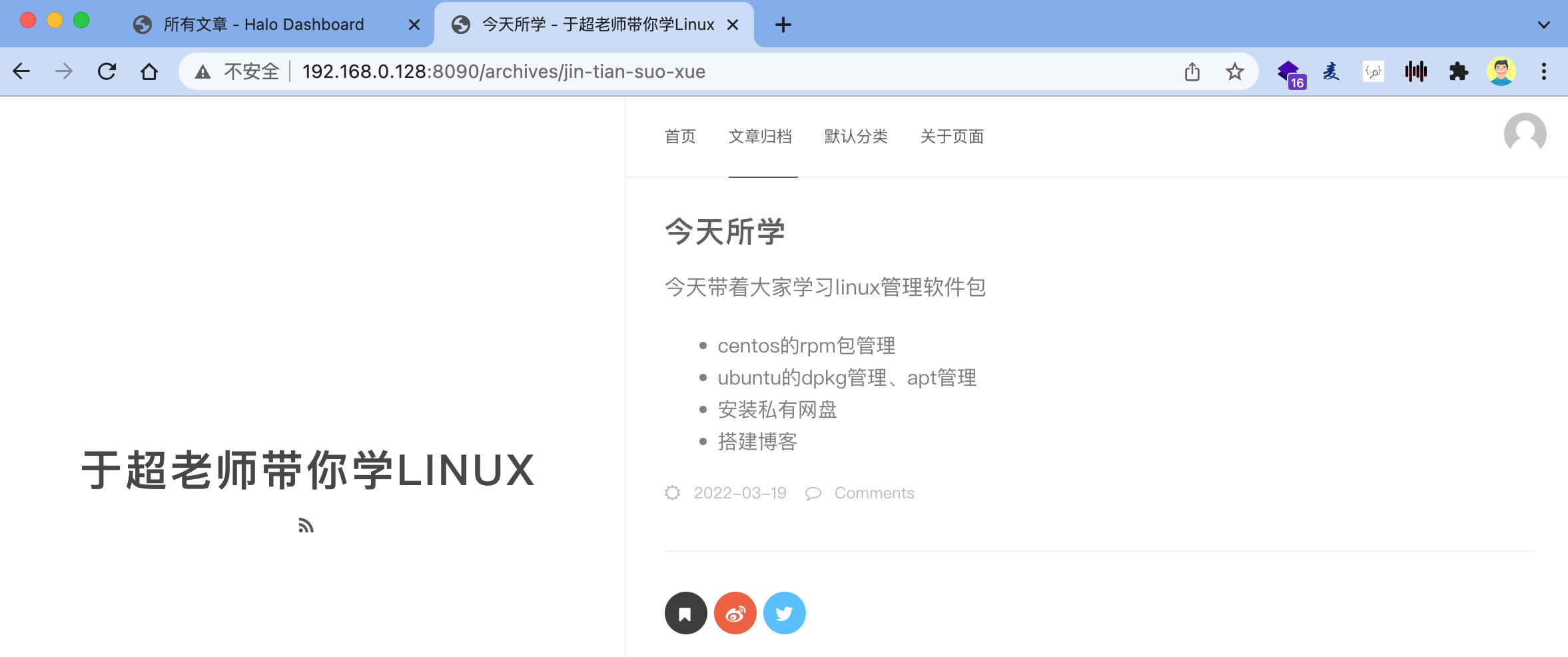
3.访问博客
http://192.168.0.128:8090/

4.访问博客后台
http://192.168.0.128:8090/admin
7.6 总结centos和ubuntu的包管理区别
| 操作内容 | centos6/7 | Debian/Ubuntu |
|---|---|---|
| 软件包后缀 | *.rpm | *.deb |
| 软件源配置文件 | /etc/yum.conf | /etc/apt/source.list |
| 更新软件包列表 | yum makecache fast | apt update |
| 从软件仓库安装xx软件 | yum install package | apt install package |
| 安装本地软件包 | rpm -i pkg.rpm | dpkg -i pkg.deb |
| 删除已安装的package | yum remove package | apt remove package |
彻底删除nginx(清理环境用)
sudo apt-get --purge remove nginx
sudo apt-get autoremove nginx
sudo dpkg --get-selections | grep nginx
sudo apt-get --purge remove nginx-common -y
sudo apt-get --purge remove libnginx*


sudo apt-get --purge remove php7.4 php7.4-fpm php7.4-gd php7.4-curl php7.4-mbstring nginx unzip -y

sudo apt-get autoremove php7.4 php7.4-fpm php7.4-gd php7.4-curl php7.4-mbstring nginx unzip -y


sudo apt install php7.4 php7.4-fpm php7.4-gd php7.4-curl php7.4-mbstring nginx unzip -y